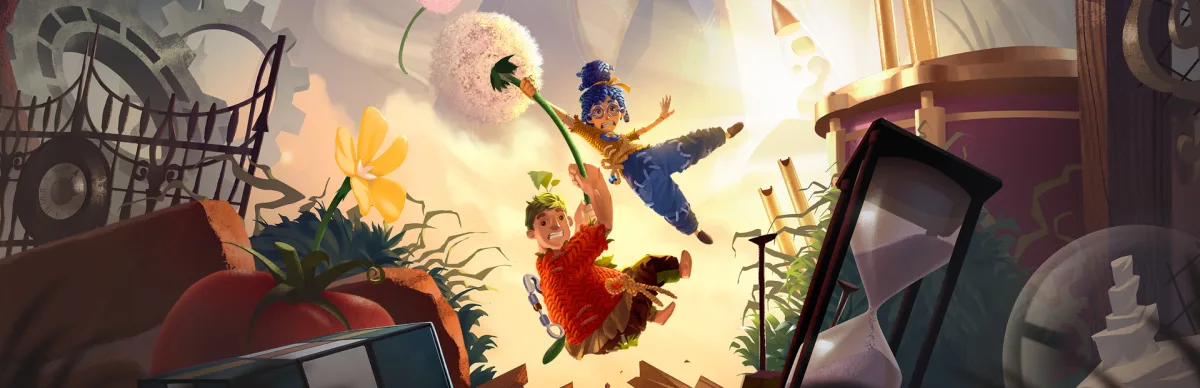
It Takes Two Crash on Startup, Missing DLL, Gatekeeper & Launch Error Fix (2026)
Quick Fix for It Takes Two Crashes & Launch Errors: Over 90% of startup crashes, missing DLL errors on Windows, and Gatekeeper prompts on macOS in It Takes Two (Build 18385016) are resolved by installing vc_redist.x64.exe, whitelisting the folder in Windows Security (or running xattr -cr on Mac), and launching as Administrator.
→ Download Clean Verified Build of It Takes Two (Build 18385016)
Common It Takes Two Desktop Errors & Proven Solutions
| Issue / Error Message | Root Cause | Step-by-Step Fix |
|---|---|---|
| Crash on Startup / Silent Exit (Windows) | Missing Visual C++ Runtime or Admin privileges | Install VC++ 2015–2022 (x86 & x64) and enable Run this program as an administrator. |
| Missing MSVCP140.dll / VCRUNTIME140.dll | Corrupted Microsoft C++ runtime libraries | Reinstall the official Microsoft Visual C++ Redistributable package and reboot your PC. |
| Missing steam_api64.dll / Activation DLL | Windows Defender quarantined the offline loader | Open Windows Security → Protection History, restore the file, and whitelist the folder. |
| "App Is Damaged and Can't Be Opened" (macOS) | macOS Gatekeeper quarantine flag | Run sudo xattr -rd com.apple.quarantine "/Applications/It Takes Two.app" in Terminal. |
Related Guides: Main Download Page | Installation Guide | System Requirements
It Takes Two – Windows 10/11 & macOS Configuration, Preset & Save Data Paths
When backing up user profiles, presets, or local save data between a Windows Desktop workstation and a MacBook Pro/Studio for It Takes Two (Build 18385016), check these default desktop directories:
| Desktop Platform | Default User Data / Config / Preset Directory | Backup & Migration Notes |
|---|---|---|
| Windows 10 / 11 (x64) | %APPDATA%\{It_Takes_Two}\ or %USERPROFILE%\AppData\LocalLow\{It_Takes_Two}\ | Back up this folder before installing a newer version or resetting preferences. |
| macOS (Apple Silicon M1–M4 / Intel) | ~/Library/Application Support/It_Takes_Two/ & ~/Library/Preferences/ | Use Cmd + Shift + G in Finder to open hidden Library paths directly. |
Release Metadata Summary – It Takes Two
- Title / Package: It Takes Two
- Verified Build Version: Build 18385016
- Archive Size: 44 GB
- Category: Game
- Target Desktop OS: Windows 10/11 (64-bit) & macOS Desktop (Apple Silicon M1/M2/M3/M4 & Intel)
- Primary Download Hub: Download It Takes Two (Build 18385016) Full Desktop Build
Popular & Similar Downloads