How to Install SWORD ART ONLINE Alicization Lycoris (Build 10050578) on Windows 10/11 PC & macOS Desktop – Full Setup Guide
How to Install SWORD ART ONLINE Alicization Lycoris (Build 10050578): Download the full desktop archive from the verified mirror below, extract the files to a clean directory using 7-Zip, WinRAR, or Keka, install any bundled runtime dependencies, and launch with administrator privileges.
→ Download SWORD ART ONLINE Alicization Lycoris (Build 10050578) Full Archive & Mirrors
Step-by-Step Desktop Installation Checklist for SWORD ART ONLINE Alicization Lycoris
- Download Complete Release: Visit the SWORD ART ONLINE Alicization Lycoris main download page and grab the full archive using IDM, JDownloader 2, or Free Download Manager.
- Prepare Security Exclusion: Add your destination folder to Windows Security exclusions (or clear Gatekeeper quarantine via
xattr -cron macOS) so false-positive heuristics do not block offline activation files. - Unpack Archive: Right-click the downloaded archive and extract using 7-Zip or WinRAR. Avoid extracting inside
C:\Program Filesor cloud-synced OneDrive folders. - Verify Runtime Dependencies: Install Visual C++ 2015–2022 Redistributables and DirectX on Windows if present in
_CommonRedist. - First Launch: Right-click the main executable and select Run as administrator.
More SWORD ART ONLINE Alicization Lycoris Resources: System Requirements | Crash & Error Fixes | Patch Notes
SWORD ART ONLINE Alicization Lycoris – Windows 10/11 & macOS Configuration, Preset & Save Data Paths
When backing up user profiles, presets, or local save data between a Windows Desktop workstation and a MacBook Pro/Studio for SWORD ART ONLINE Alicization Lycoris (Build 10050578), check these default desktop directories:
| Desktop Platform | Default User Data / Config / Preset Directory | Backup & Migration Notes |
|---|---|---|
| Windows 10 / 11 (x64) | %APPDATA%\{SWORD_ART_ONLINE_Alicization_Lycoris}\ or %USERPROFILE%\AppData\LocalLow\{SWORD_ART_ONLINE_Alicization_Lycoris}\ | Back up this folder before installing a newer version or resetting preferences. |
| macOS (Apple Silicon M1–M4 / Intel) | ~/Library/Application Support/SWORD_ART_ONLINE_Alicization_Lycoris/ & ~/Library/Preferences/ | Use Cmd + Shift + G in Finder to open hidden Library paths directly. |
Release Metadata Summary – SWORD ART ONLINE Alicization Lycoris
- Title / Package: SWORD ART ONLINE Alicization Lycoris
- Verified Build Version: Build 10050578
- Archive Size: 77.3 GB
- Category: Game, Anime
- Target Desktop OS: Windows 10/11 (64-bit) & macOS Desktop (Apple Silicon M1/M2/M3/M4 & Intel)
- Primary Download Hub: Download SWORD ART ONLINE Alicization Lycoris (Build 10050578) Full Desktop Build
Frequently Asked Questions – SWORD ART ONLINE Alicization Lycoris (Build 10050578)
What is included in the SWORD ART ONLINE Alicization Lycoris Free Download Build 10050578?
This specific build corresponds to the Digital Deluxe Edition. It includes the full base game, the Premium Pass with two major expansions and a special costume, and 200 SAO coins for in-game purchases.
Can I play SWORD ART ONLINE Alicization Lycoris on Windows?
Yes, the game is designed for PC platforms. Ensure your system meets the minimum hardware requirements for the latest build to experience smooth real-time combat and open-world exploration in the Underworld.
Is the story in SWORD ART ONLINE Alicization Lycoris connected to the anime?
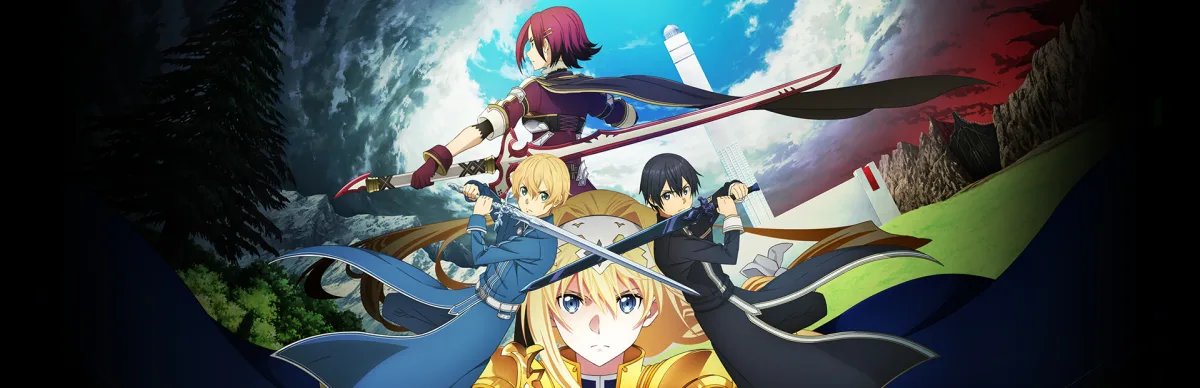
Absolutely. The game is set in the Underworld, a key location from the SAO anime. It continues the narrative involving Kirito and Eugeo, focusing on their promise and the events surrounding the Lycoris arc.